Fortnite PS4 remains an option for players who want to enjoy Fortnite on a PlayStation 4 console. The game is available to download for free, although optional in game purchases are offered. An internet connection is required to play online.
Getting started involves finding Fortnite in the PlayStation Store, downloading the game, installing available updates and signing in with the correct account. Checking your console’s available storage and network connection can also help prevent installation problems.
This guide explains Fortnite on PS4, including downloading, installation, gameplay modes, account linking, controller settings, cross platform play and common troubleshooting steps. It also covers the differences between Fortnite on PS4 and PS5.
Can You Play Fortnite on PS4?
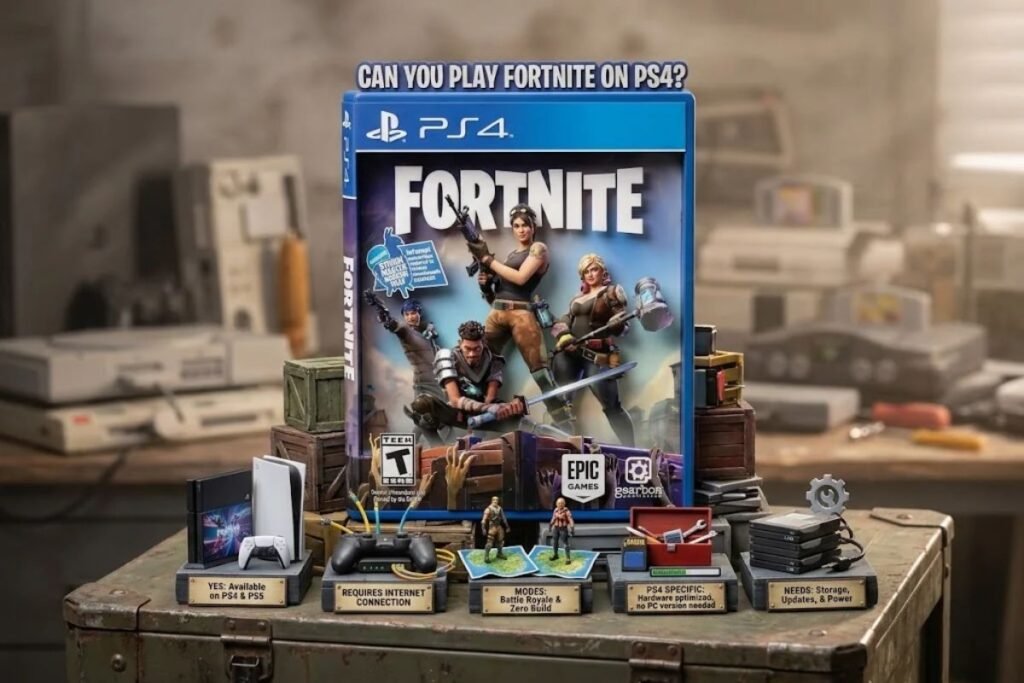
Yes, Fortnite is available on PlayStation 4. The official PlayStation game listing identifies both PS4 and PS5 as supported platforms and Fortnite is listed as a free to play game with optional in game purchases.
Fortnite PS4 gameplay requires an internet connection because online play is part of the experience. Players can access supported game modes, including Battle Royale and Zero Build, through the game.
The PS4 version is designed for the console’s hardware so you do not need to install the PC version or meet Windows PC system requirements. You do, however, need sufficient console storage, an updated game installation and a working internet connection.
For more gaming guides, platform comparisons and helpful gaming tips, visit the Pepper0 homepage to explore more gaming content.
How to Download Fortnite on PS4?
The safest way to get Fortnite PS4 is through the official PlayStation Store. Avoid unofficial download pages that offer modified installers or ask for your PlayStation or Epic Games password.
Follow these steps to download the game:
- Turn on your PS4 and connect it to the internet.
- Open the PlayStation Store from the console’s home screen.
- Use the search function to find Fortnite.
- Select the official Fortnite game listing.
- Choose the option to add the game to your library or begin the download.
- Follow the on screen instructions to confirm the download.
- Wait for the game files to download and install.
You can also visit the official to find the game listing and access the available download options.
The exact labels displayed on your console may vary with the PlayStation Store interface and your account settings. If the game does not appear to download, check your download queue, available storage and internet connection before trying again.
How to Install Fortnite on PlayStation 4?
After downloading Fortnite, your PS4 needs to complete the installation process. Depending on the download and any required updates, you may need to wait before the game is ready to launch.
Check the Downloads or Notifications area on your console to see the download’s progress. Once the installation finishes, locate Fortnite on the home screen or in your game library and launch it.
Fortnite may need to download additional updates before you can enter the game. Keep your console connected to the internet and allow the update to finish instead of repeatedly restarting the download.
If you already played Fortnite on another platform, check your Epic Games account before launching the game for the first time. Linking the correct account helps ensure that supported progress and purchases are associated with the account you intend to use.
Is Fortnite Free to Play on PS4?
Yes, the main Fortnite game is free to download on PS4. You can start playing supported free to play modes without purchasing the base game.
However, Fortnite includes optional purchases. These may include V Bucks, cosmetic items, packs and Battle Pass related content. The available offers can change so check the in game shop or official store listing for current details.
Purchasing optional items is different from downloading the base game. You do not need to buy every cosmetic item to access Fortnite’s free to play experience.
If a child uses the console, review purchase settings and parental controls before adding a payment method. This helps families manage spending and access to age appropriate content.
Fortnite PS4 Account Linking and Progress Sync
Your Epic Games account is important when playing Fortnite across multiple supported platforms. If you have an existing account, use that account rather than accidentally creating or linking a different one.
To connect your PlayStation account, sign in to the official Epic Games website and open the account settings. Find the account linking or connected accounts section, choose the PlayStation option and follow the authentication instructions.
Use the PlayStation account that you actually use to play Fortnite. If your account is already connected to another Epic Games account, review the account details carefully before making changes.
Does Fortnite Progress Transfer to Other Platforms?
Fortnite supports cross progression through the appropriate linked accounts. This means supported progress and eligible content can be available when you play on another supported platform using the same Epic Games account.
However, cross progression does not mean every platform specific item, purchase or currency balance is necessarily handled identically. Some restrictions can apply so check the current official account and currency guidance before assuming everything will transfer.
Fortnite PS4 Cross Platform Play
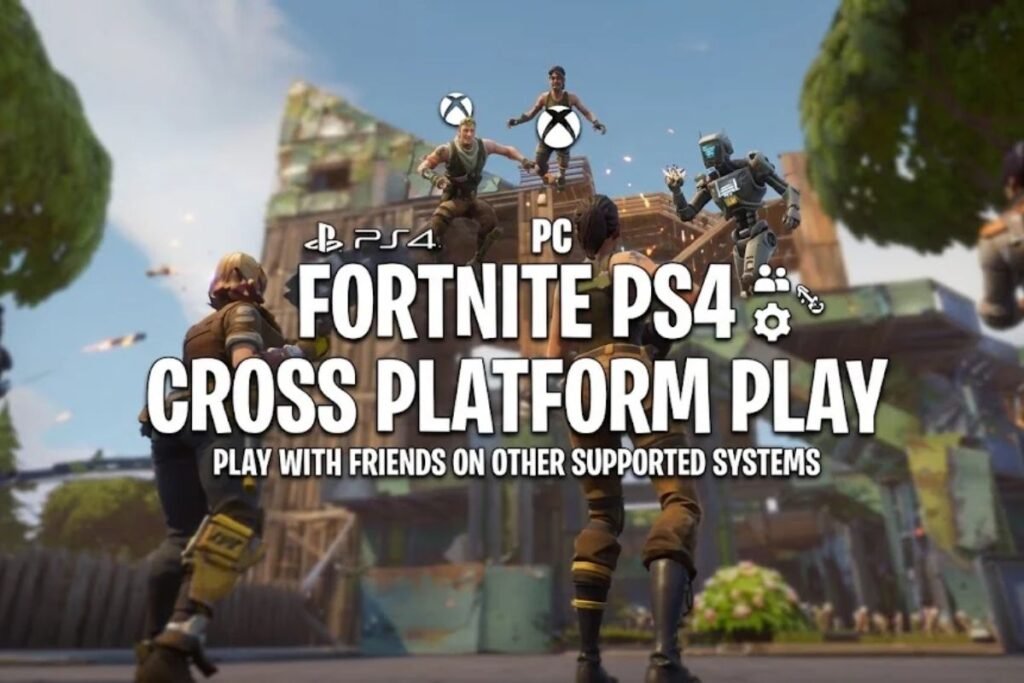
Fortnite PS4 cross platform play allows players to play with friends using other supported platforms. Depending on the game mode and current matchmaking arrangements, this can include players on PC, Xbox and other supported systems.
To play with friends, make sure you are using the correct Epic Games account and have added the relevant friends through the available Fortnite social features. You may need to check your party privacy and cross platform settings if you cannot join someone.
Cross platform play is separate from cross progression. Cross platform play lets people on supported platforms play together, while cross progression relates to accessing eligible progress and content across platforms.
If you experience problems joining a party, check that everyone has installed the current game update. Also review privacy settings and any restrictions that might prevent players from joining each other.
Fortnite PS4 Battle Royale and Zero Build
Fortnite offers multiple experiences so players can choose a mode that suits their preferred style of play.
Battle Royale focuses on surviving against other players until one player or team remains. Building is part of the traditional Battle Royale experience, allowing players to construct structures during matches.
Fortnite PS4 Zero Build provides a different approach by removing building from the mode. Players instead focus on positioning, weapons, movement and using available cover to survive encounters.
Other Fortnite experiences may also be available through the game’s interface. The modes and content can change with updates so check the in game Discover section for the current options available to your account.
Best Fortnite Controller Settings for PS4
Fortnite PS4 controller settings affect how quickly and accurately your character responds to input. There is no single sensitivity setup that works best for every player, because preferred settings depend on experience, comfort and play style.
Open Fortnite’s settings menu and review the controller options. Depending on the current settings interface, you may be able to adjust sensitivity, aiming behavior, controller layout and other input preferences.
Start with a setup that feels comfortable rather than changing every option at once. Test a small adjustment during practice or a low pressure match, then decide whether it improves your control.
Consider these general approaches when adjusting your settings:
- Sensitivity: Choose a level that lets you turn comfortably without losing control of your aim.
- Controller layout: Use a layout that makes common actions easy to reach.
- Aiming: Test your aiming response and make small adjustments if tracking opponents feels difficult.
- Practice: Spend time learning your selected settings before making further changes.
These are starting points, not guaranteed competitive settings. Your preferred configuration may differ from another player’s setup.
Can You Use a Keyboard and Mouse on Fortnite PS4?
Keyboard and mouse compatibility depends on the game’s supported input options and the device setup. If you want to use them instead of a controller, connect compatible devices and check Fortnite’s current input behavior.
Do not assume that every keyboard, mouse, adapter or third party accessory will work as expected. For the most predictable setup, use the supported controls available on your console and verify compatibility before buying additional equipment.
Fortnite PS4 Storage Space and Internet Requirements
Before starting a Fortnite PS4 download, check how much free storage is available on your console. The required space can change as the game receives updates so a previously sufficient amount of storage may not always be enough for a later installation.
To check your storage, open the PS4 settings and navigate to the system storage section. Review the space available and remove games or applications you no longer need if necessary.
Avoid relying on an old download size estimate. Check the storage required by the current download on your console and leave additional room for updates when possible.
A stable internet connection is also important. A weak or inconsistent connection can make downloading updates take longer and may contribute to lag or disconnections during online play.
If your download is slow, pause other large downloads and check whether other devices are heavily using your network. If the connection remains unstable, restart your router and console, then test the connection again.
Fortnite PS4 vs PS5: What Is the Difference?
Fortnite is available on both PS4 and PS5, but the consoles have different hardware capabilities. The experience can therefore differ in performance, loading behavior and supported console specific features.
The PS4 version is an option for players who already own the older console and want to play without buying a PS5. The PS5 version takes advantage of the newer console’s hardware and may provide features that are not available in the same form on PS4.
Do not assume that every PS5 feature is supported on PS4. For the current platform information, consult the official.
Your choice depends on which console you own and what you expect from the experience. If you already have a PS4, check that the game downloads and runs correctly before considering a hardware upgrade.
Players interested in gaming on different devices can also learn about cloud gaming and how game streaming works on compatible platforms.
How to Fix Fortnite PS4 Download and Login Problems?
Fortnite PS4 problems can occur during downloading, installation, updates, login or gameplay. The best troubleshooting step depends on the error you see so check any displayed error message before trying more extensive fixes.
Fortnite Is Not Downloading
If Fortnite will not download, check your internet connection and available storage first. Then open your console’s download queue to see whether the download is paused, waiting or showing an error.
If the download remains stuck, restart the console and try again. You can also check for PlayStation system updates and confirm that your account can access the PlayStation Store normally.
Fortnite Update or Installation Failed
An update may fail if the console runs low on storage, the network connection is interrupted or a platform or game issue occurs. Check the available storage and restart the console before attempting the update again.
If Fortnite continues to fail, consult the official. It covers checking game updates, updating console software, clearing the platform cache, reinstalling the game and power cycling the console.
Reinstalling should not be your first step if a simple restart or storage check may resolve the issue. If you do reinstall, make sure you can access the correct linked account before launching the game again.
Fortnite Login Issues on PS4
If Fortnite will not sign in, verify that your PS4 is connected to the internet and that PlayStation Network services are working. Check whether the game requires an update and make sure you are using the correct PlayStation and Epic Games accounts.
If you previously played on another platform, an account linking problem may also need attention. Avoid creating additional accounts or unlinking existing accounts without understanding the possible effects on your progress.
If the problem continues, search the official Epic Games Help Center for the exact error message. A specific error code can point you toward more relevant troubleshooting steps.
How to Fix Fortnite Lag on PS4
Lag may be related to network conditions, console performance or a temporary service issue. First, test your internet connection and check whether other devices are using substantial bandwidth.
Use a stable connection where possible, pause other large downloads and restart your router if the connection is unreliable. If lag continues, check for Fortnite updates and review official service status information before changing more settings.
Fortnite PS4 Parental Controls and Safe Downloads
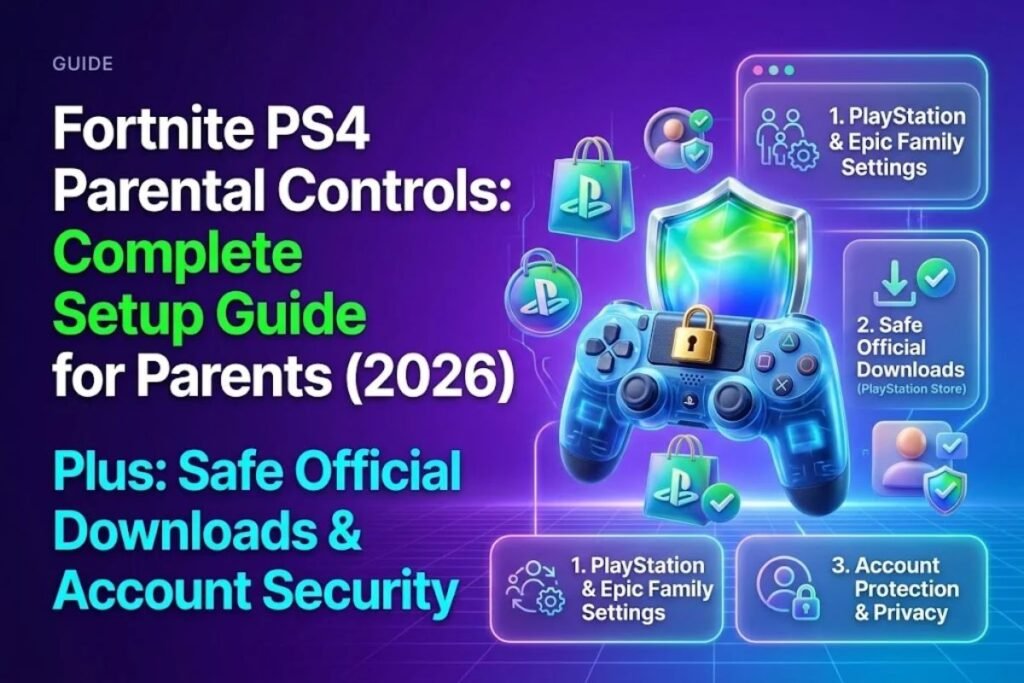
Parents and guardians can use PlayStation family settings and Fortnite’s available parental controls to manage a child’s gaming experience. The options may cover areas such as spending, communication, playtime and access to content.
Review the controls on the relevant PlayStation and Epic Games accounts. Settings on one service may not automatically control every feature on another so check both where appropriate.
For safety, download Fortnite through the official PlayStation Store and use official account pages for account linking. Avoid websites that promise unofficial game installers, free paid content or account rewards in exchange for passwords.
Never share account credentials with an unknown website. If a page asks you to install an unfamiliar file or browser extension to get Fortnite working on PS4, do not follow those instructions.
Conclusion
Fortnite PS4 lets PlayStation 4 players access Fortnite’s free to play experience, including supported Battle Royale and Zero Build modes. Download the game through the official PlayStation Store, maintain a stable internet connection and keep enough storage available for updates.
For account linking and cross progression, use the correct Epic Games account and review the official instructions before changing connected accounts. Adjust controller settings gradually and troubleshoot download, login or lag problems using the relevant error information.
If Fortnite PS4 is not working as expected, start with basic checks such as storage, updates and network connectivity. Use official PlayStation and Epic Games support resources for persistent problems and avoid unofficial downloads or suspicious account websites.
FAQs
Does Fortnite still work on PS4?
Yes, Fortnite is listed as available on PS4 and PS5 on the official PlayStation game page. You need an internet connection and a working, updated installation to play online.
Does Fortnite require PlayStation Plus on PS4?
Fortnite is a free to play online game. Check the current PlayStation Store listing and account requirements if you encounter a subscription prompt, because optional PlayStation Plus content may have separate conditions.
How much storage does Fortnite need on PS4?
The required storage can change with game updates. Check the current download information on your console and make sure you have enough free space for installation and future updates.
Can PS4 players play Fortnite with PC and Xbox players?
Fortnite supports cross platform play across supported platforms. Make sure your game is updated and your party, privacy and account settings allow you to join your friends.
How do you improve Fortnite performance on PS4?
Start by updating Fortnite and your PS4 system software, checking your internet connection and closing other downloads. If the game continues to crash or perform poorly, follow the official console troubleshooting guidance.