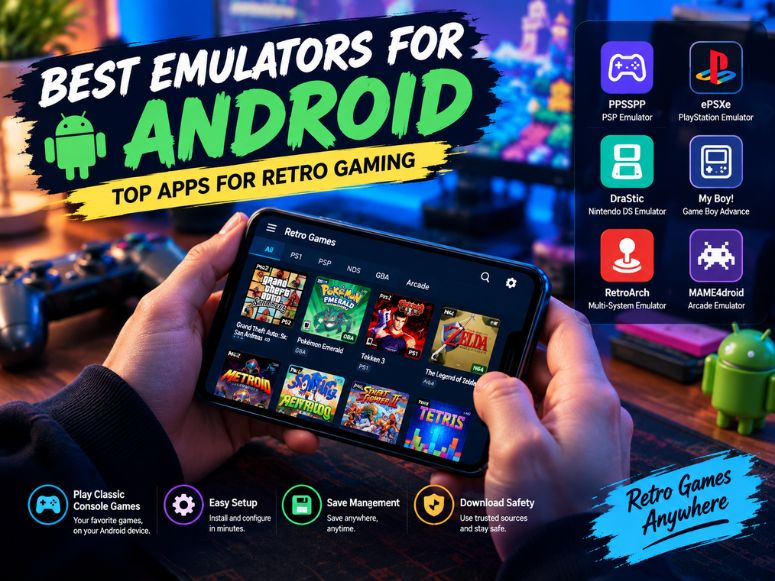
The best emulators for Android let you enjoy classic console games on a smartphone or tablet. They can recreate the software environment of supported gaming systems, allowing compatible games to run without the original console.
Different emulators support different systems, including PlayStation, PSP, Nintendo DS, Game Boy and older arcade platforms. Your best option depends on the games you want to play, your device’s hardware and how much configuration you are comfortable with.
This guide compares popular Android emulators, explains their main uses and covers installation, touchscreen controls, save management and download safety. The focus is on retro gaming directly on Android devices, not running Android apps on a Windows computer.
Best Emulators for Android: Quick Comparison
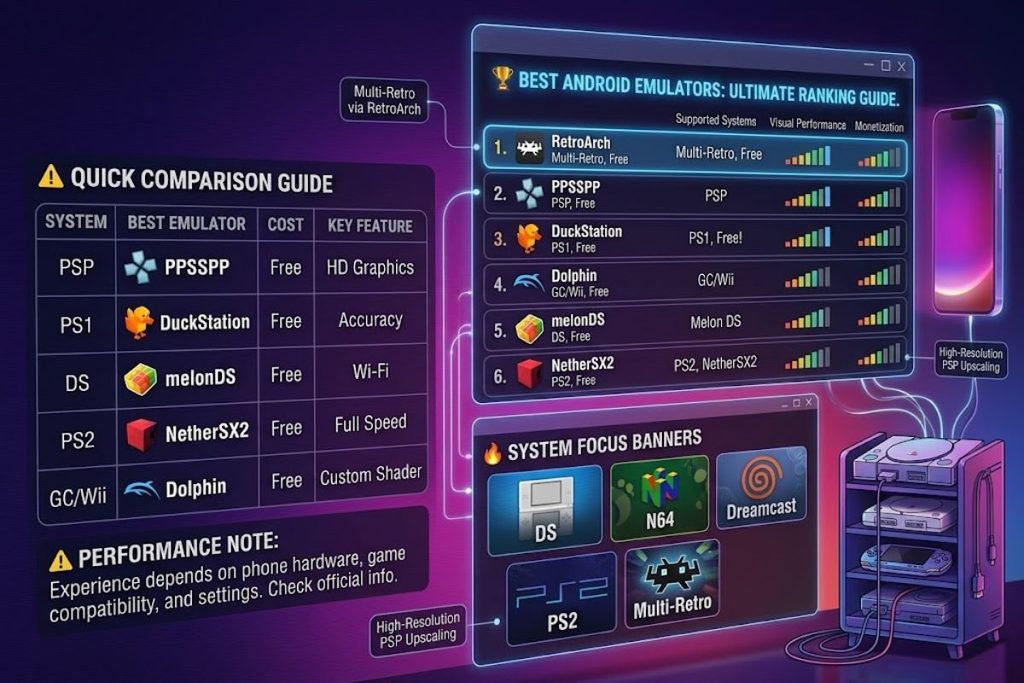
Several Android emulators support different classic gaming systems. RetroArch and Lemuroid are suitable for playing games from multiple retro systems, while PPSSPP focuses on PSP games and DuckStation supports PlayStation 1 games.
Dolphin supports GameCube and Wii games, while melonDS, M64Plus FZ, Flycast and NetherSX2 focus on Nintendo DS, Nintendo 64, Dreamcast and PlayStation 2 emulation, respectively.
Most of these emulators are free, although some offer optional paid versions or additional features. Performance depends on your phone’s hardware, game compatibility, emulator version and settings. Check official project information before downloading.
Which Are the Best Emulators for Android?
The best emulators for Android depend on the games you want to play and your phone’s performance. PPSSPP is a popular choice for PSP games, DuckStation supports PlayStation 1 games and Dolphin is designed for GameCube and Wii titles.
RetroArch and Lemuroid are useful for playing games from multiple classic systems. Before choosing an emulator, check game compatibility, device requirements and the official download source.
RetroArch for Multiple Gaming Systems
RetroArch is a multi system frontend that uses components called cores to emulate different platforms. Instead of installing a separate application for every supported system, you can manage several emulators through one interface.
It is useful for people who want to organize an extensive retro game library. However, beginners may need time to understand core downloads, directory settings and controller configuration.
Choose RetroArch if you value flexibility and centralized library management. If you only want to play games from one console, a dedicated emulator may be easier to configure.
Lemuroid for Beginners
Lemuroid is a multi system emulator designed around a more straightforward Android experience. It can be a suitable starting point for casual gamers who want to play compatible retro games without managing numerous separate applications.
Its simpler approach may reduce the initial setup work compared with a highly configurable frontend. However, its supported systems and customization options differ from those of RetroArch.
Choose Lemuroid if you prefer a simpler interface. Check its current supported systems and features before relying on it for a particular game.
PPSSPP for PSP Games
PPSSPP is a dedicated emulator for PlayStation Portable games. It offers options for graphics configuration, control customization and save management, making it useful for playing supported PSP titles on Android.
Its performance depends on the game, phone hardware and selected settings. Some games may run comfortably on modest devices, while others may need more processing power or adjustments.
PPSSPP is a strong starting point if your main interest is PSP gaming. Obtain the application through its official website or a verified distribution channel.
DuckStation for PlayStation Games
DuckStation focuses on the original PlayStation. It provides compatibility and graphics options for supported PS1 games, including enhancements that can improve their appearance on modern screens.
Some settings may require experimentation, especially when a game behaves differently with particular graphics options. Beginners should start with default settings before enabling additional enhancements.
Choose DuckStation if you mainly play original PlayStation titles. Check the project’s official Android download information and supported requirements before installing it.
Dolphin for GameCube and Wii
Dolphin emulates Nintendo GameCube and Wii games on supported devices. These systems can demand considerably more resources than older 8 bit and 16 bit consoles.
A compatible game may run well on a capable smartphone, but performance varies with the processor, graphics hardware, game and emulator settings. Higher rendering resolutions can increase the workload.
Dolphin is worth considering if you have a relatively capable device and want to explore GameCube or Wii games. Start with default settings and reduce demanding enhancements if gameplay becomes slow.
melonDS for Nintendo DS
melonDS is an option for Nintendo DS emulation. Because DS games can rely on two screens, touch input and specific control layouts, the emulator’s interface matters as much as basic performance.
A smartphone’s touchscreen can reproduce stylus interactions, although the smaller display may feel less convenient than a tablet. A physical controller may help with buttons but cannot replace every touch based action.
Check the current Android version, game compatibility and official distribution channel before installing melonDS.
M64Plus FZ for Nintendo 64
M64Plus FZ is designed for Nintendo 64 emulation on Android. It provides configuration options that can help users adjust the experience for different games and devices.
Some titles may require specific graphics settings or input adjustments. If a game displays visual problems or runs poorly, return to default settings and test changes individually.
It is worth considering if Nintendo 64 is your main retro gaming interest. Check the current app listing for its availability, supported Android version and any paid features.
Flycast for SEGA Dreamcast
Flycast supports Dreamcast emulation on Android and other platforms. It is relevant for players who want to revisit compatible SEGA Dreamcast games on a phone or tablet.
Compatibility and performance vary by title and hardware. Some games may require additional configuration, while others may work with relatively little adjustment.
Use the project’s official release information to find a suitable Android version. Avoid downloading modified packages from unfamiliar websites.
NetherSX2 for PlayStation 2
NetherSX2 is an option for users interested in PlayStation 2 emulation on Android. Its setup is more involved than installing many simpler emulator apps so it is generally better suited to users comfortable following technical instructions.
PS2 emulation can place substantial demands on smartphone hardware. A compatible emulator does not guarantee that every game will run smoothly, even on a powerful device.
Check the project’s official documentation and installation instructions before proceeding. Avoid unofficial repackaged installers that promise effortless access to every PS2 game.
How to Choose the Best Emulator for Android?
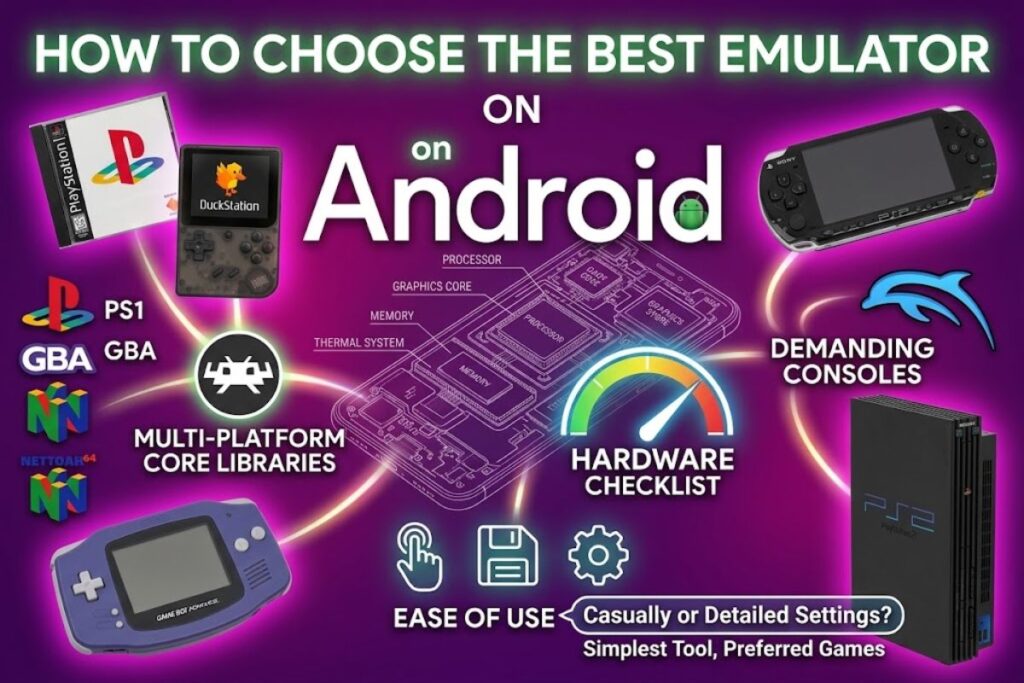
The right emulator depends on your gaming habits rather than the number of features an application advertises.
Match the Emulator to Your Console
Start by identifying the original system for the games you want to play. A PSP emulator will not replace a PS1 emulator and an application supporting multiple older systems may not support more demanding consoles.
If you enjoy games from several older platforms, RetroArch or Lemuroid may simplify library management. For a single system, a dedicated application such as PPSSPP or DuckStation may provide a more focused experience.
Consider Your Phone’s Hardware
Smartphone hardware affects how well an emulator performs. Processor capability, graphics support, available memory, device temperature and emulator settings can all influence gameplay.
Older phones may handle simpler systems comfortably but struggle with GameCube, Wii or PS2 games. Do not assume that every emulator will run smoothly simply because it installs successfully.
For a low end device, begin with older systems and default settings. Avoid increasing rendering resolution or enabling demanding enhancements until you know how well the game performs.
Choose Based on Ease of Use
Beginners may prefer an emulator with automatic game detection, straightforward controls and minimal configuration. More experienced users may value detailed graphics settings, multiple cores and advanced input options.
A complex application is not necessarily better for casual gaming. Choose the simplest tool that supports your preferred games and gives you the controls and save options you need.
How to Set Up an Android Emulator?
The exact process varies by application, but most setups follow a similar sequence.
Step 1: Download the Emulator
Find the official project website or verified Google Play listing. For open source applications distributed through GitHub, use the project’s official repository and release information.
Check the application’s name, developer android requirements and installation instructions. Avoid third party download pages that bundle extra software or offer modified packages without clear documentation.
Step 2: Install and Configure the App
Install the application and open it. Review any requested permissions and grant only those needed for its intended functions.
Some emulators require additional components, such as RetroArch cores, while others work as standalone applications. Follow the official setup instructions rather than downloading random configuration files.
Step 3: Add Your Game Files
An emulator generally needs a compatible game file to run a game. Use game files you are legally entitled to use and follow the relevant copyright laws.
Depending on the system, additional firmware or BIOS files may be required. Obtain these through lawful, authorized means and follow the emulator’s documentation for the correct file location.
Step 4: Configure Controls and Graphics
Start with the default graphics settings and test a compatible game. If gameplay is smooth, you can experiment with resolution, visual enhancements and other supported options.
Configure touchscreen buttons or connect a compatible controller. Change one setting at a time so you can identify which adjustment helps or causes a problem.
Step 5: Test Game Compatibility
Launch the game and check whether the audio, visuals, controls and save functions work correctly. If the game crashes or displays errors, confirm that the file format and emulator version are supported.
Consult the official project documentation or compatibility information when available. Do not assume that a problem always means your phone is too weak; incorrect settings or unsupported files can also cause issues.
How to Improve Game Controls on Android?
Touchscreen gaming optimization can make retro games easier to play on a phone. However, small virtual buttons may cover important parts of the screen or feel awkward during fast gameplay.
Adjust the position, size and transparency of on screen controls where the emulator allows it. Place frequently used buttons within comfortable reach and avoid covering essential visual information.
For games designed around physical buttons, a compatible Bluetooth or USB controller may provide a more familiar experience. Check controller support and button mapping before buying additional hardware.
If you use a tablet, take advantage of the larger display to create a more comfortable layout. Test the controls in an actual game instead of relying only on the settings preview.
How to Organize Retro Games on Android?
Android game library management becomes important when you use multiple emulators. A clear folder structure makes it easier to locate games, back up files and avoid duplicate downloads.
Keep game files organized by console, using separate folders for systems such as PSP, PS1 and Nintendo DS. Store related artwork and configuration files according to your chosen frontend’s instructions.
A frontend such as RetroArch, Lemuroid or a compatible game launcher may help organize supported systems in one interface. However, each application has different scanning and library features.
Use descriptive filenames and avoid changing files that an emulator depends on without understanding the consequences. A consistent folder structure is especially useful when moving your library to a new phone or tablet.
Save Management and Cloud Backups
Game save management is essential if you play over several sessions. Many emulators support some form of saving, but normal in game saves, save states and cloud synchronization are different features.
In game saves use the game’s original saving system. Save states capture the emulator’s current state and can be convenient, but they may be less portable between emulator versions or different applications.
To back up Android emulator save files, first locate the relevant save directory through the app’s documentation or settings. Copy the files to a separate storage location and test that the backup is accessible.
Some applications support cloud storage or synchronization through specific features or external tools. Do not assume every emulator includes built in cloud saves. Confirm support before relying on automatic synchronization.
Download Safety and Legal Considerations
Download safety matters because unofficial installers can contain unwanted software, modified code or misleading advertisements. A familiar application name does not guarantee that every download carrying that name is genuine.
Prefer official websites, verified app store listings and release pages linked by the project’s maintainers. Check permissions, developer information, update history and installation instructions before proceeding.
Be cautious with APK files from unknown sources. Avoid installers that request unrelated permissions or promise large collections of copyrighted games with no clear licensing information.
Emulators and game files are separate issues. The legal status of emulation, firmware and game copies depends on the jurisdiction and how the files were obtained and used. Do not assume that downloading a game file is lawful simply because an emulator supports it.
Common Android Emulator Problems
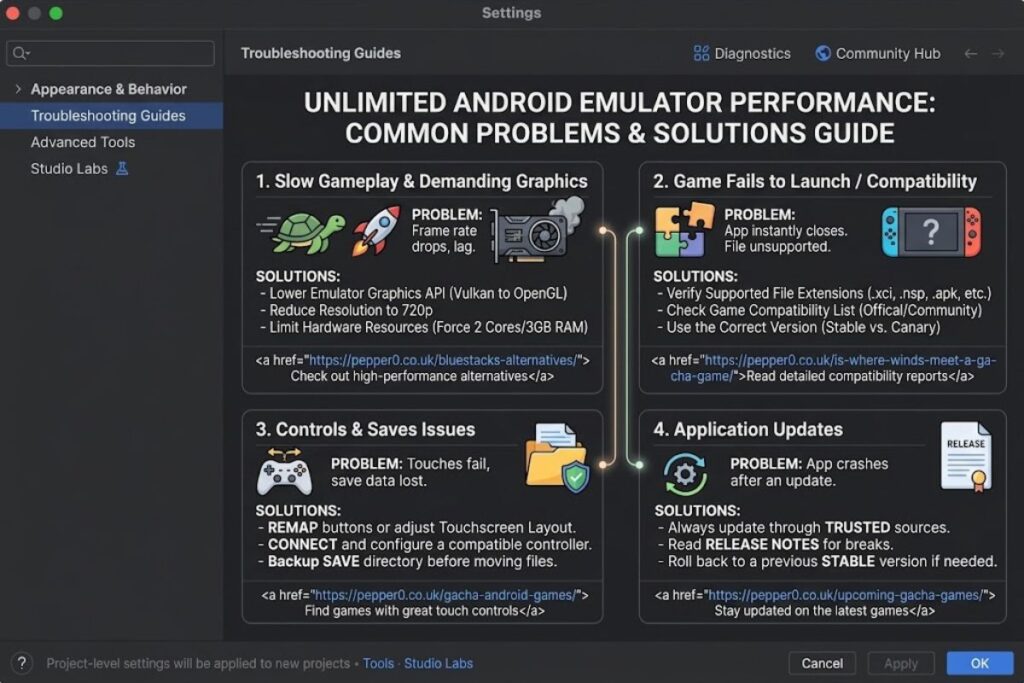
Slow gameplay may result from demanding graphics settings, limited hardware resources or game specific compatibility problems. Return to default settings and test the same game before making further changes.
If a game does not launch, confirm that the file is supported and that any required firmware or BIOS files are correctly configured. Check official documentation for known issues and supported versions.
Control problems can often be improved by adjusting touchscreen layouts, remapping buttons or connecting a compatible controller. For save problems, confirm that the correct save directory is being used and create a backup before moving files.
Keep emulator applications updated through trusted sources, but read release notes before changing versions if your current setup works reliably.
Conclusion
The best emulators for Android depend on your preferred console, smartphone hardware and desired gaming experience. RetroArch and Lemuroid suit multi system libraries, while PPSSPP, DuckStation and Dolphin focus on particular console families.
For smoother gameplay, start with compatible games, default settings and suitable controls. Organize your game library and back up important saves so you can maintain your setup over time.
Finally, download applications from trusted sources and verify compatibility before installing additional files. Choosing an emulator that matches your device and gaming habits will make retro gaming on mobile devices easier to manage.
FAQs
Which Android emulator is best for beginners?
Lemuroid is a useful starting point for beginners who want a simpler multi system experience. RetroArch offers broader configuration options, but its core based setup may require more learning.
Can Android emulators run on low end phones?
Yes some emulators can run older console systems on modest hardware. Performance depends on the phone, game and settings so begin with less demanding systems and default configurations.
Can I use a controller with Android emulators?
Many Android emulators support compatible physical controllers, although setup and button mapping vary. Check the application’s documentation and your device’s connection support before purchasing a controller.
Do Android emulators support cloud saves?
Some applications or external tools support cloud based storage or synchronization, but availability differs. Check the specific emulator’s documentation and back up important saves separately.
Where should I download Android emulators safely?
Use official project websites, verified app store listings or official repository releases. Check the developer and installation instructions and avoid modified APKs from unfamiliar sources.