Fortnite on Steam Deck is possible through cloud gaming, but playing the game directly on SteamOS has important compatibility limitations. Before choosing a method, you should understand the difference between running Fortnite locally and streaming it over the internet.
Epic Games has announced work toward Linux support through a new version of Easy Anti Cheat. However, its current support information says Fortnite is not yet available on Linux and Steam Deck compatibility with the new anti cheat system remains unresolved.
For most players who want to use SteamOS without installing another operating system, Xbox Cloud Gaming is the practical option to investigate first. This guide explains compatibility, setup, controls, streaming performance, regional availability and common problems.
For more gaming guides, platform tutorials and helpful gaming information, visit the Pepper0 homepage to explore more content.
Can You Play Fortnite on Steam Deck?

Yes, you can play Fortnite on Steam Deck through a supported cloud gaming service, such as Xbox Cloud Gaming, where available. However, that does not mean Fortnite runs natively on the device.
The Steam Deck uses SteamOS, a Linux based operating system. Fortnite’s anti cheat requirements have prevented straightforward native gameplay on SteamOS so installing an ordinary game launcher does not automatically make the game playable.
Epic Games currently recommends Xbox Cloud Gaming as a workaround for Steam Deck owners. You can check its official guidance through the Epic Games support page.
Fortnite Steam Deck Compatibility: What Is the Current Status?
Understanding Fortnite Steam Deck compatibility requires separating three different situations: native SteamOS gameplay, potential future Linux support and cloud streaming.
Native SteamOS gameplay: Fortnite is not currently listed as available for direct play on SteamOS through Epic’s official support guidance. Installing an unofficial launcher alone does not resolve the game’s anti cheat compatibility requirements.
Linux support development: Epic has announced work on Easy Anti Cheat Linux v2 and plans to bring Fortnite to Linux once its security requirements are ready. However, Epic has also stated that the Steam Deck currently lacks required features for this new anti cheat solution and it is discussing compatibility with Valve.
Cloud gaming: Instead of processing the entire game locally, a cloud service runs the game remotely and streams the gameplay to your device. This lets you play without installing the native Fortnite game on SteamOS.
These options are not interchangeable. A Linux launcher announcement does not confirm that Fortnite is ready to install and play directly on every Steam Deck.
How to Play Fortnite on Steam Deck Using Xbox Cloud Gaming?
Xbox Cloud Gaming lets supported users stream Fortnite through a compatible browser. The game runs remotely, while the Steam Deck receives the video and sends your controls over the internet.
Cloud gaming allows players to stream games from remote servers instead of installing and running them directly on their devices. Learn more about cloud gaming and how this technology works across compatible platforms.
Before starting, check that Xbox Cloud Gaming is available in your country and that your internet connection is suitable for streaming. You should also have access to the Microsoft account and Epic Games account required by the service.
Switch to Desktop Mode
Press the Steam button on your Steam Deck and open the Power menu. Choose the option to switch to Desktop Mode.
Desktop Mode provides access to the software tools needed to configure a browser. You can return to Gaming Mode after completing the setup.
Install a Compatible Browser
Open the Discover Software Center from the desktop environment. Search for Microsoft Edge and install it by following the on screen instructions.
If the browser is already installed, open it and check that it launches correctly. Use the official browser distribution available through the device’s software tools rather than downloading an unknown installer.
Open Xbox Cloud Gaming
Launch the browser and visit the official Xbox Cloud Gaming website. Sign in with your Microsoft account and check whether Fortnite is available to you.
Follow the site’s instructions to access the game. Availability, waiting times and account requirements may differ by country or service changes so confirm the details shown for your location.
Add the Browser to Your Steam Library
If you want to launch cloud gaming from Gaming Mode, open the Steam desktop application. Add the installed browser as a non Steam game through the library’s available options.
You can rename the shortcut to make it easier to recognize. For example, you could call it Xbox Cloud Gaming, but remember that this shortcut opens the browser based service rather than installing Fortnite locally.
Configure the Browser for Handheld Use
Open the shortcut’s properties in Steam and review the available launch options. The browser may need adjustments to display the cloud gaming website properly on the Steam Deck screen.
Exact configuration options can change with browser updates and the installed version. If a guide recommends terminal commands or permission changes, understand what each command does before running it.
Return to Gaming Mode and Launch Fortnite
Use the desktop’s Return to Gaming Mode shortcut. Find the browser shortcut in your Steam library and open it.
Once the cloud gaming website loads, select Fortnite and follow the on screen instructions. If the game does not launch, check your account access, browser compatibility and regional availability before changing system settings.
Can You Install Fortnite on SteamOS?
At present, Epic’s official Linux support page says Fortnite is not available on Linux yet. The company is working on Easy Anti Cheat changes intended to make Linux support possible, but the required compatibility work is not complete.
SteamOS is Linux based so ordinary Windows installation instructions do not automatically apply. Installing the Epic Games Launcher preview on Linux also does not prove that Fortnite itself can currently run on the Steam Deck.
Avoid assuming that every Windows game will work through Proton or another compatibility layer. Online multiplayer games can depend on anti cheat systems that require specific support from the developer.
Fortnite Cloud Gaming vs Native Gameplay
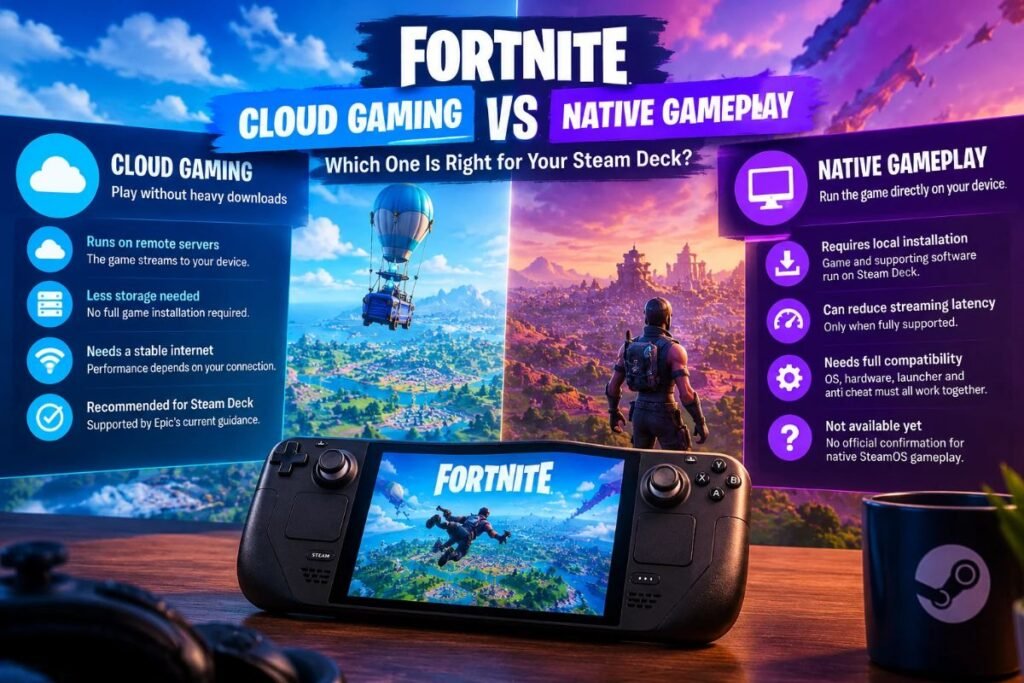
Cloud gaming and native gameplay provide different experiences. The right choice depends on whether you prefer convenience, local installation or greater control over the operating system.
With cloud gaming, the game runs on remote hardware. Your Steam Deck displays the stream and sends input so local storage requirements for the full game are reduced.
Native gameplay requires the game and its supporting software to run on the device itself. It can avoid cloud streaming latency, but only when the operating system, hardware, launcher and anti cheat requirements are all supported.
For Fortnite on Steam Deck, cloud gaming is the option directly recommended by Epic’s current support guidance. Native SteamOS gameplay should not be treated as available until official compatibility information confirms it.
Does Fortnite Run Smoothly on Steam Deck?
Fortnite performance on Steam Deck through cloud gaming depends heavily on the quality of your internet connection and the service’s streaming performance. A strong connection can help provide responsive gameplay, while unstable Wi Fi may cause stuttering, visual degradation or delayed controls.
There is no single FPS figure that accurately describes every cloud gaming session. The game is rendered remotely so the experience depends on the streaming service, network conditions, selected stream settings and the device’s display.
Cloud gaming can also feel different from playing a locally installed game. Even when the video looks smooth, network latency can affect how quickly your actions appear on screen.
How to Improve Streaming Performance
Use a reliable Wi Fi connection and stay close enough to your router to maintain a stable signal. If your network is shared with other people, heavy downloads or streaming on other devices may affect your gameplay.
Close unnecessary browser tabs and applications on the Steam Deck. This can reduce local distractions, although it cannot fix latency caused by the internet connection or remote service.
If the stream becomes blurry or controls feel delayed, test the connection at another time or location. Avoid assuming that the Steam Deck itself is underpowered when the issue may be related to streaming.
Steam Deck Gaming Controls for Fortnite
The Steam Deck has built in controls that can be used with browser based gaming, but the controls must be recognized correctly by the browser and cloud gaming service.
Start with the standard gamepad layout available through Steam’s controller configuration. Open the shortcut’s controller settings and check that the expected buttons, sticks and triggers are mapped correctly.
If Fortnite does not respond to your inputs, test the controls in another part of the cloud gaming interface. This can help you determine whether the problem occurs in the browser, the Steam controller layout or the game session itself.
You can also experiment with trackpads or other available input configurations if they make browser navigation easier. Make small changes one at a time so you can identify which setting improves usability.
Can You Use a Keyboard and Mouse?
Keyboard and mouse use depends on the browser, cloud gaming service and supported input configuration. Do not assume that every setup will pass keyboard and mouse inputs to the streamed game exactly as expected.
For portable handheld gaming, the built in Steam Deck controls are usually the simplest starting point. If you prefer keyboard and mouse, check the current service documentation and test your equipment before relying on it for a match.
Is Fortnite Free to Play on Steam Deck?
Fortnite is a free to play game, but the method you use to access it matters. With Xbox Cloud Gaming, you access the game through the supported cloud service rather than downloading the native Fortnite installation to SteamOS.
Check the current Xbox Cloud Gaming page for regional access, account requirements and any service conditions that apply. Do not assume that every cloud gaming feature or access arrangement is identical in every country.
Fortnite also offers optional in game purchases. These are separate from the basic question of whether you can launch the game and you should review purchase details before buying any content.
Is Xbox Cloud Gaming Available in Every Country?
No cloud gaming service should be assumed to be available everywhere. Country support and access conditions can change so check the official Xbox Cloud Gaming website before spending time configuring your Steam Deck.
If Fortnite does not appear after you sign in, first confirm that the service supports your location. Also check that you are using the correct account and that the game is currently offered through the service in your region.
A browser shortcut cannot bypass regional restrictions or create service availability where it is not offered. If the service is unavailable in your country, review official options rather than relying on unofficial websites that promise access.
Can You Play Fortnite Offline on Steam Deck?
Fortnite requires an internet connection and cloud gaming also needs a connection to stream the game. You cannot use Xbox Cloud Gaming to play Fortnite offline.
An interrupted connection can stop the stream or make the controls temporarily unresponsive. For a better experience, check your Wi Fi before starting and avoid moving into areas where the signal frequently drops.
If you need games that work without an internet connection, look for titles that explicitly support offline gameplay. Do not assume that installing a browser shortcut makes an online game available offline.
Windows Installation vs Cloud Gaming
Installing Windows on a Steam Deck is different from using Xbox Cloud Gaming. Windows changes the device’s operating system, while cloud gaming lets you access a remote game through SteamOS without installing the full game locally.
A Windows installation may provide a different software compatibility environment, but it is not a guaranteed solution for every Fortnite issue. You would still need to check current game, launcher, anti cheat, driver and hardware requirements.
Cloud gaming avoids the need to configure a separate operating system, making it a more straightforward option for users who want to keep SteamOS. Its main limitations are internet dependence, potential latency and service availability.
Before changing operating systems, review the current instructions and understand the effect on your device configuration. Do not assume that installing Windows will automatically resolve every compatibility or performance problem.
How to Fix Fortnite Streaming Problems on Steam Deck?
If Fortnite fails to launch through Xbox Cloud Gaming, begin by checking the simplest possible causes. Confirm that the browser opens, your account is signed in and the cloud gaming website is accessible.
If the game loads but controls do not work, review Steam’s controller layout and the browser shortcut’s configuration. Return to the default layout if recent changes have made input behavior less predictable.
If the stream repeatedly disconnects, test your Wi Fi connection and restart the browser. You can also restart the Steam Deck if the browser or Gaming Mode shortcut stops responding.
If Fortnite is unavailable in your region or the service displays an account related message, check the official service guidance. Reinstalling SteamOS or changing system files is unlikely to solve a cloud service restriction.
For native Linux compatibility problems, check Epic’s latest support information instead of relying on older guides. Compatibility announcements can change and instructions written before a new anti cheat update may no longer describe the current situation.
What Does Future Fortnite Compatibility Mean for Steam Deck Owners?

Epic’s Linux announcement is a development toward broader Linux gaming support, but it does not confirm that Fortnite is ready to run directly on the Steam Deck. The company has specifically identified requirements that the device does not currently meet for its new Easy Anti Cheat solution.
Epic and Valve are discussing compatibility, but future support should not be treated as guaranteed until official updates confirm it. There is also no confirmed release date for native Steam Deck gameplay in the information cited here.
If you want to play now, use a supported cloud gaming option where it is available. If you prefer native gameplay, monitor Epic’s official Linux support information for a confirmed status change.
Conclusion
Fortnite on Steam Deck is accessible through cloud gaming, but native SteamOS compatibility remains a separate issue. Epic’s Linux development announcement does not mean the game is already ready to install and play directly on the handheld.
Xbox Cloud Gaming is the practical route to investigate if it is supported in your region. Configure a compatible browser, add it to Steam if you want a Gaming Mode shortcut and check your controller settings and internet connection.
For the best experience, use official service information and troubleshoot streaming problems before changing your operating system. Check Epic’s latest compatibility guidance before relying on any claim that Fortnite is fully supported on Steam Deck.
FAQs
Does Fortnite work on Steam Deck?
Yes, Fortnite can be played through a supported cloud gaming service such as Xbox Cloud Gaming where available. Direct native gameplay on SteamOS is not currently confirmed by Epic’s support information.
How do you play Fortnite on Steam Deck without installing Windows?
You can use Xbox Cloud Gaming through a compatible browser. This lets you stream Fortnite while keeping SteamOS, although a stable internet connection and supported regional access are required.
What FPS does Fortnite get on Steam Deck?
There is no single FPS figure for cloud gaming because the game runs remotely. The visible experience depends on the service, stream settings and network conditions rather than only the Steam Deck’s local hardware.
Can you play Fortnite on Steam Deck offline?
No. Fortnite requires an internet connection and cloud gaming needs a connection to stream gameplay. An offline browser shortcut cannot make Fortnite playable without internet access.
Is Fortnite officially supported on Steam Deck?
Epic’s current guidance does not confirm native SteamOS support. The company is working on Linux anti cheat support and discussing Steam Deck compatibility with Valve, but the required work is not yet complete.