If you are wondering, can you play Fortnite on Mac, the answer is yes but not through a currently supported native macOS installation. Epic Games does not offer the latest Fortnite version as a standard Mac download.
However, Mac users can still access Fortnite through cloud gaming services. NVIDIA GeForce NOW, Xbox Cloud Gaming and Amazon Luna allow supported Mac devices to stream the game through an app or web browser.
This guide explains how to play Fortnite on MacBook models, including Intel and Apple Silicon devices. It also covers cloud gaming setup, controller compatibility, internet requirements, performance tips and common problems.
For more gaming tutorials, platform guides and helpful gaming tips, explore the Pepper0 homepage and discover more useful gaming content.
Can You Play Fortnite on Mac Without Downloading It?
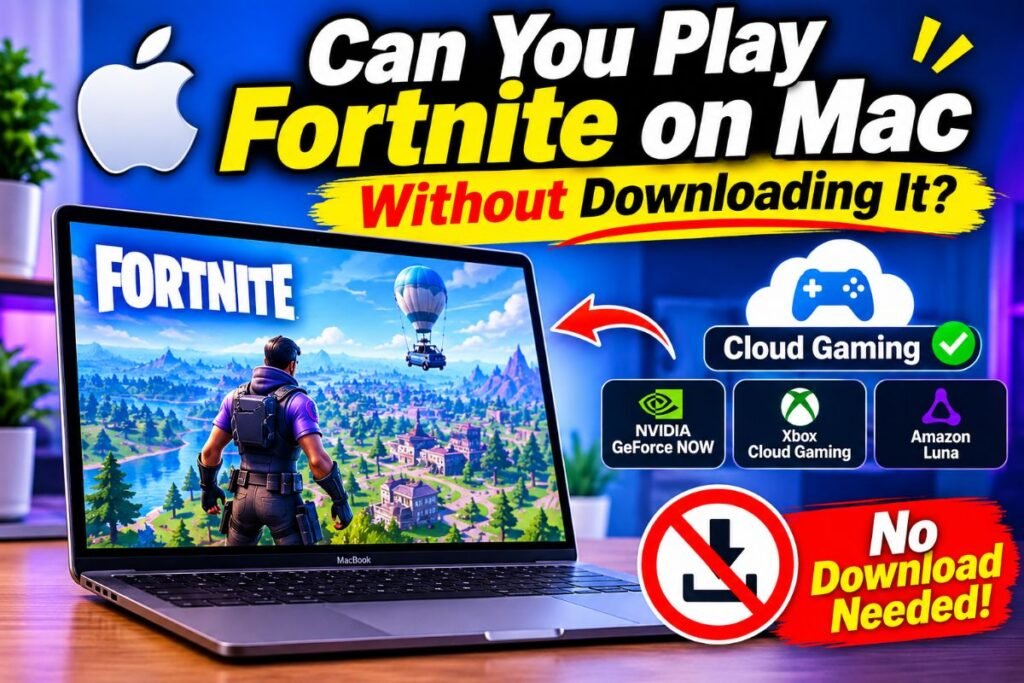
Yes, you can play Fortnite on Mac without downloading the complete game to your computer. Cloud gaming services run Fortnite on remote gaming hardware and stream the gameplay to your Mac.
Cloud gaming allows players to access games through remote servers instead of installing them directly on their devices. Learn more about cloud gaming and how this technology works across different devices.
This means your Mac does not need to install or process the full game locally. Instead, you access the game through a supported browser or application and control it using your keyboard, mouse or compatible controller.
Epic Games currently identifies three cloud gaming options for Mac users: GeForce NOW, Xbox Cloud Gaming and Amazon Luna. The availability of each service depends on your location and its current requirements.
Why Is Fortnite Not Natively Available on Mac?
Fortnite does not currently have an officially supported native macOS version that provides the latest game updates. Older Mac installations may still exist but they should not be confused with the current supported Fortnite experience.
The previous macOS version is outdated and does not provide the same current content and updates as the supported versions on other platforms. Installing an old copy is therefore not a dependable way to access the latest Fortnite gameplay.
For current gameplay, cloud streaming is the official route recommended by Epic Games for Mac users.
How to Play Fortnite on Mac Using GeForce NOW?
NVIDIA GeForce NOW is a cloud gaming service that lets you stream supported games without requiring a powerful gaming computer. Fortnite can be played on a Mac through its application or a compatible web browser.
The service offers different membership options, including free and paid plans. Their session lengths, server access and performance features can vary so check the current membership details before choosing one.
Steps to Play Fortnite on Mac With GeForce NOW
First, visit the official GeForce NOW website and create an NVIDIA account. Choose the membership option that suits your needs and complete the account setup.
Next, open GeForce NOW on your Mac using its supported macOS application or a compatible browser. Sign in and search for Fortnite in the available game library.
Select Fortnite and follow the on screen instructions to connect your Epic Games account if required. Once the game launches, sign in with the Epic account you normally use.
Your Fortnite progress can transfer between supported platforms when the same Epic Games account is connected. This helps you continue using your existing account rather than starting with a separate profile.
GeForce NOW Requirements for Mac
GeForce NOW supports macOS, including older Mac hardware that meets its current system requirements. NVIDIA lists macOS 10.15 or later and Macs introduced in 2009 or later for its current native Mac app requirements.
Your internet connection is especially important because gameplay is streamed rather than processed entirely on your computer. NVIDIA lists 15 Mbps for HD streaming at up to 60 FPS and 25 Mbps for Full HD streaming at 60 FPS.
A wired Ethernet connection or 5 GHz Wi Fi is recommended. NVIDIA also specifies a network latency requirement below 80 ms to its data center, with lower latency generally providing a better experience.
How to Play Fortnite on Mac Using Xbox Cloud Gaming?
Xbox Cloud Gaming is another option for playing Fortnite on a Mac without installing the native game. It streams supported gameplay through a web browser so you do not need a Windows gaming PC.
Fortnite is free to play through Xbox Cloud Gaming in supported regions, although you need a Microsoft account and must meet the service’s current access requirements.
Steps to Use Xbox Cloud Gaming on Mac
Open a supported browser on your Mac and visit the official Xbox Cloud Gaming website. Sign in with your Microsoft account or create one if you do not already have it.
Find Fortnite in the available games and select the Play option. Follow any account linking instructions and sign in to your Epic Games account when prompted.
After the game loads, you can start playing through the browser. Use a compatible controller or another supported input method according to the service’s current device requirements.
What to Know Before Using Xbox Cloud Gaming
Xbox Cloud Gaming does not install Fortnite directly on macOS. Your Mac receives a streamed video feed while your inputs are sent to the remote gaming system.
This makes it useful for MacBook users who do not have a dedicated gaming computer. However, a weak connection can cause delayed controls, blurry visuals or interruptions.
Service availability and supported devices can vary by region. Check the official Xbox website before relying on it as your primary way to play.
How to Play Fortnite on Mac Using Amazon Luna?
Amazon Luna provides another cloud gaming option for Mac users. It allows Fortnite to run through cloud streaming on supported Apple computers, including MacBook models.
Epic’s official Fortnite page lists macOS and Mac compatible browser access for Amazon Luna. The service can also support keyboard and mouse on Apple Mac while compatible Bluetooth controllers are another input option.
Steps to Start Fortnite Through Amazon Luna
Visit the Amazon Luna website using a supported browser on your Mac. Sign in with your Amazon account and check whether Luna is available in your region.
Find Fortnite in the available game library and select the option to start playing. Follow the instructions to connect your Epic Games account if the service requests it.
Once the game loads, choose your preferred input method and enter the Fortnite experience. You do not need to download the full Fortnite game to your Mac because the service streams it from remote hardware.
Is Amazon Luna Free for Fortnite?
Epic states that Amazon Prime members can stream Fortnite through Luna at no additional cost. However, access and membership conditions depend on the current Luna offering and your region.
Check the latest Amazon Luna membership information before subscribing to anything. Do not assume that every Luna feature or game is included in every membership.
Which Cloud Gaming Service Is Best for Fortnite on Mac?
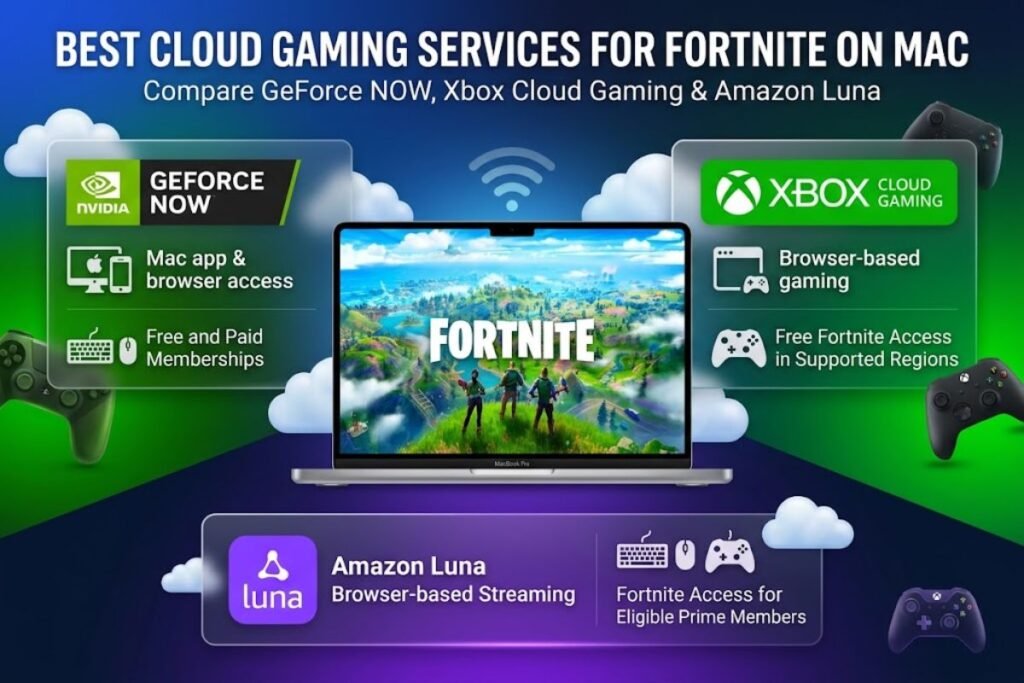
The best service depends on your location, internet connection, preferred controls and budget. All three options let you stream Fortnite without installing a native macOS version.
- GeForce NOW: Offers Mac app and browser access, supports keyboards, mice and compatible controllers and provides free and paid memberships.
- Xbox Cloud Gaming: Supports browser based play and compatible controllers. Fortnite can be played for free in supported regions.
- Amazon Luna: Offers browser based streaming with compatible controls. Eligible Prime members can access Fortnite at no additional cost.
GeForce NOW may suit players who prefer a dedicated app while Xbox Cloud Gaming offers free Fortnite access in supported regions. Amazon Luna can be convenient for eligible Prime members. Compare regional availability, controls, session limits and connection quality before choosing.
Can You Play Fortnite on MacBook Air and Apple Silicon Macs?
Yes, you can play Fortnite on a MacBook Air through supported cloud gaming services. Because the game runs on remote servers, your MacBook Air does not need the same graphics hardware required to run Fortnite locally.
This applies to Apple Silicon models such as M1, M2, M3 and M4 MacBooks. Having a newer Apple chip does not automatically provide native Fortnite support but it does not prevent you from using a supported streaming service.
Fortnite on M1, M2, M3 and M4 Macs
M series MacBooks can access Fortnite through GeForce NOW, Xbox Cloud Gaming and Amazon Luna where those services are available. The main requirements are a compatible browser or application, an account and a stable internet connection.
The Mac’s processor and graphics hardware have less influence on streamed game performance than they would on a locally installed game. However, the Mac still needs enough resources to run the browser or streaming application smoothly.
Does Fortnite Work on Intel Mac Computers?
Intel Mac users can also access Fortnite through supported cloud gaming services. The important factors are the macOS version, browser compatibility and network quality.
An older Intel Mac may not provide the same local performance as a newer model but cloud streaming reduces the need for powerful local gaming hardware. Check the chosen provider’s current Mac requirements before starting.
Can You Play Fortnite on Mac With a Keyboard, Mouse or Controller?
Yes, Fortnite cloud gaming on Mac can support different input devices but compatibility depends on the service and device setup.
GeForce NOW supports keyboard and mouse on supported Mac setups, along with compatible controllers. Amazon Luna also lists keyboard and mouse support for Apple Mac and Bluetooth controller options.
Xbox Cloud Gaming has its own supported controller and device requirements. Check its current compatibility information before buying a controller specifically for Fortnite.
Fortnite Mac Keyboard and Mouse Support
A physical keyboard and mouse can be useful when playing through a service that supports those inputs on Mac. This setup may feel more familiar to players who normally use a PC.
A dedicated mouse can make aiming and camera movement more comfortable. You should also check whether your chosen browser or application recognizes both devices correctly before starting a match.
Fortnite Mac Controller Compatibility
Compatible Xbox and PlayStation controllers can work with supported cloud gaming services. The exact controller list depends on the provider and device.
Connect your controller to your Mac through Bluetooth or a supported cable. Open the cloud gaming service and check whether the controller is detected before launching Fortnite.
How Much Internet Speed Do You Need for Fortnite on Mac?
Cloud gaming depends on a stable internet connection because the game is streamed continuously from a remote server. A fast connection helps maintain video quality but speed alone does not guarantee smooth gameplay.
NVIDIA lists 15 Mbps for HD streaming at up to 60 FPS and 25 Mbps for Full HD streaming at 60 FPS. It also recommends Ethernet or 5 GHz Wi Fi and requires latency below 80 ms to its data center.
Why Ping and Latency Matter
Ping measures how long data takes to travel between your device and a server. High latency can make aiming, movement and other actions feel delayed during Fortnite matches.
A connection with consistent latency can feel better than one with a higher advertised download speed but frequent interruptions. For this reason, network stability matters alongside download speed.
Wi Fi or Ethernet for Fortnite Streaming?
Ethernet can provide a more consistent connection because it avoids some wireless interference. If your Mac does not have an Ethernet port, a compatible USB C Ethernet adapter may help.
If you use Wi Fi, connect to a 5 GHz network when available and keep your Mac reasonably close to the router. Avoid heavy downloads and other activities that use significant bandwidth during gameplay.
How to Reduce Fortnite Lag on Mac?
Lag can make Fortnite difficult to play, especially when your controls respond later than expected. Since cloud gaming relies on a remote server, the cause may be your network, browser, streaming service or local device.
Start by checking your internet connection. If possible, use Ethernet or switch to a stable 5 GHz Wi Fi network.
Close unnecessary browser tabs and background applications that consume memory or network bandwidth. This can help your Mac run the streaming service more smoothly.
If the game looks blurry or frequently pauses, check the streaming quality settings offered by your provider. Selecting a lower resolution may help when your connection cannot maintain a higher streaming quality.
Also, make sure your browser and macOS are updated to supported versions. Restarting the browser, router or streaming application can help resolve temporary connection problems.
Remote Access vs Cloud Gaming: What Is the Difference?
Remote access and cloud gaming both let you view gameplay on a Mac but they work differently. Understanding this difference can prevent you from choosing a method that does not match your equipment.
Cloud gaming runs Fortnite on remote gaming servers. You connect to a service such as GeForce NOW, Xbox Cloud Gaming or Amazon Luna and stream the game without needing your own gaming PC.
Remote access streams a game from a device that you already own. For example, if you have a Windows gaming PC that can run Fortnite, you may use compatible remote desktop software to view and control that computer from your Mac.
The important limitation is that the source device must be capable of running Fortnite. Remote access does not turn a Mac into a gaming PC or create a remote gaming computer when you do not own one.
Why Is Fortnite Not Installing on Mac?
If you search for Fortnite in the Epic Games Launcher on macOS and cannot find a supported current installation, this is expected. Epic does not currently offer the latest native macOS version.
Avoid following old installation guides that describe downloading Fortnite through the Mac launcher as though it were the current official method. They may refer to an older version or outdated instructions.
Should You Use Parallels or Boot Camp?
Epic states that Fortnite is not supported on non native operating systems such as Windows installed through Parallels on Mac, virtual machines or Linux.
Boot Camp is associated with Intel Macs, not Apple Silicon models. However, running Windows through Boot Camp does not make it an officially supported Fortnite solution under Epic’s current guidance.
For this reason, do not rely on Parallels, virtual machines or Boot Camp as guaranteed ways to play the latest Fortnite. Use one of the cloud gaming services listed by Epic instead.
Troubleshooting Common Fortnite Mac Problems
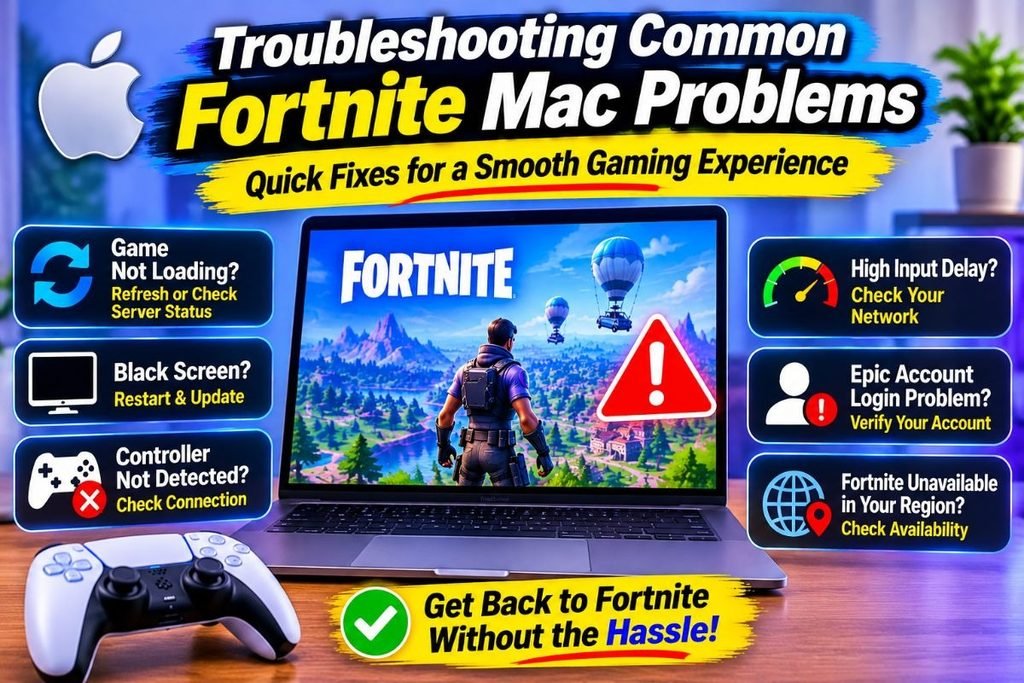
Some problems can occur even when your Mac and cloud gaming service are compatible. Checking the connection, account and input settings can help identify the cause.
Game not loading: Refresh the browser or restart the streaming application. Check whether the service is available in your region and whether its servers are experiencing an issue.
Black screen: Close the current session and launch Fortnite again. Update your browser or application if the issue continues.
Controller not detected: Check Bluetooth or cable connections, then confirm that your controller is supported by the chosen service. Reconnect it before launching the game.
High input delay: Check your network latency and move closer to your router if using Wi Fi. Try Ethernet or a lower streaming resolution if the connection is unstable.
Epic account login problem: Confirm that you are using the correct Epic Games account. If your progress is missing, check whether the cloud gaming service is connected to the same account you use on other platforms.
Fortnite unavailable in your region: Check the official service availability information. A cloud gaming option may not be accessible in every country or territory.
Conclusion
So, can you play Fortnite on Mac? Yes but the current supported method is cloud gaming rather than a native macOS installation. GeForce NOW, Xbox Cloud Gaming and Amazon Luna provide options for compatible Mac users.
MacBook Air, Intel Mac and Apple Silicon users can all consider these services, provided their devices meet the relevant requirements. Your choice should depend on regional availability, account access, preferred controls and internet quality.
Before choosing a service, check its current requirements and membership details. A stable connection and compatible input device can make playing Fortnite on Mac a more comfortable experience.
FAQs
Can you play Fortnite on MacBook Air?
Yes. MacBook Air users can play Fortnite through supported cloud gaming services such as GeForce NOW, Xbox Cloud Gaming and Amazon Luna. A stable internet connection is important for smooth streaming.
Is Fortnite free to play on Mac?
Fortnite itself is free to play and some cloud gaming access options are available without paying for a gaming subscription. However, membership conditions and additional service features vary by provider.
Can you play Fortnite on an M1, M2, M3 or M4 Mac?
Yes, through supported cloud gaming services. These Apple Silicon chips do not provide native Fortnite macOS support but they can run compatible streaming applications and browsers.
Can you play Fortnite on Mac without downloading it?
Yes. Cloud gaming services stream Fortnite from remote servers so you do not need to download the complete game to your Mac. You still need a supported browser or application and a compatible account.
How do you reduce lag when playing Fortnite on Mac?
Use a stable Ethernet or 5 GHz Wi Fi connection, close unnecessary background applications and check your network latency. Lowering streaming resolution can also help when your connection struggles.